
This guide will show you how to pull Clicks, Impressions, CTR, Position, and Top Keywords for any set of URLs directly into Google Sheets using the Google Search Console API.
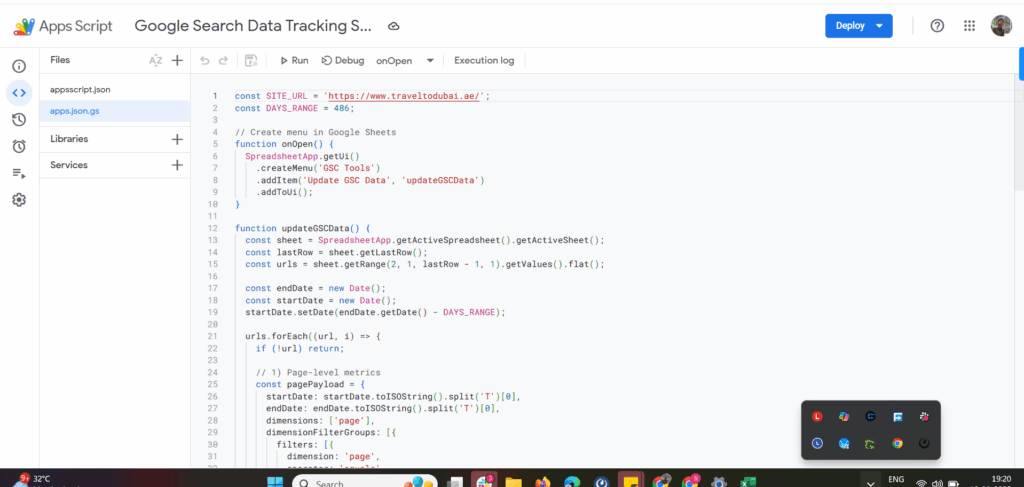
Step 1 — Prepare Your Google Sheet
- Open a new Google Sheet.
- In Column A, list the URLs you want to track (starting from row 2).
- Keep Columns B–F empty — these will be auto-filled with data.
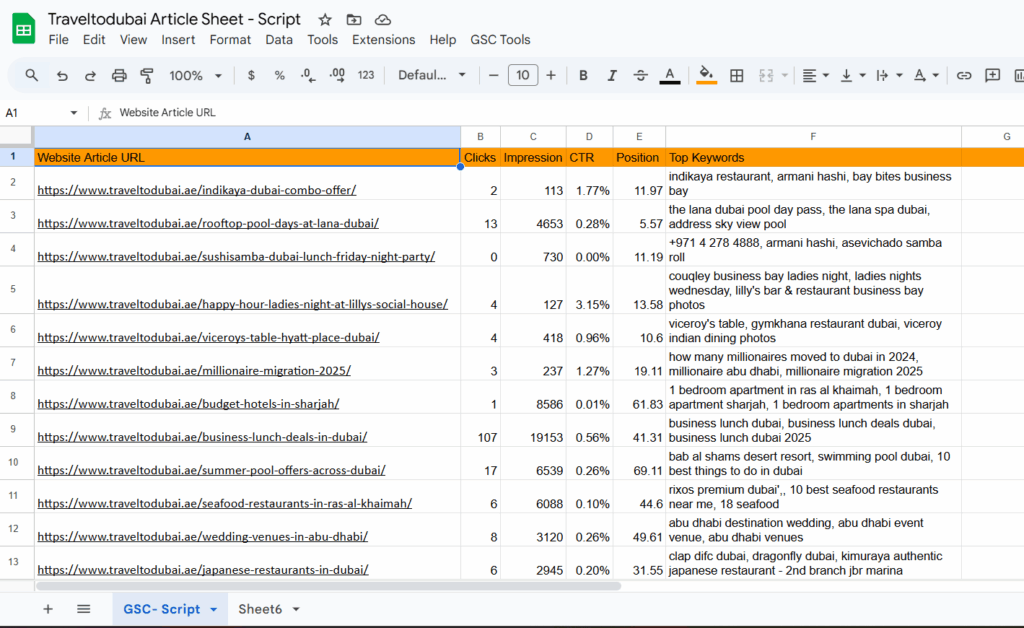
Step 2 — Open Apps Script Edito
- Go to Extensions → Apps Script.
- Delete any existing code.
- Paste the following script into the editor:
const SITE_URL = 'https://example.com/'; // Your verified GSC property
const DAYS_RANGE = 28; // Number of days of data to fetch

function onOpen() {
  SpreadsheetApp.getUi()
    .createMenu('GSC Tools')
    .addItem('Update GSC Data', 'updateGSCData')
    .addToUi();
}

function updateGSCData() {
  const sheet = SpreadsheetApp.getActiveSpreadsheet().getActiveSheet();
  const urls = sheet.getRange('A2:A' + sheet.getLastRow()).getValues().flat().filter(Boolean);
  const endDate = new Date();
  const startDate = new Date();
  startDate.setDate(endDate.getDate() - DAYS_RANGE);

  urls.forEach((url, index) => {
    const report = UrlFetchApp.fetch(
      `https://www.googleapis.com/webmasters/v3/sites/${encodeURIComponent(SITE_URL)}/searchAnalytics/query`,
      {
        method: 'post',
        contentType: 'application/json',
        payload: JSON.stringify({
          startDate: formatDate(startDate),
          endDate: formatDate(endDate),
          dimensions: ['page'],
          dimensionFilterGroups: [{
            filters: [{
              dimension: 'page',
              operator: 'equals',
              expression: url
            }]
          }],
          rowLimit: 1
        }),
        headers: { Authorization: 'Bearer ' + ScriptApp.getOAuthToken() }
      }
    );

    const data = JSON.parse(report);
    if (data.rows && data.rows.length > 0) {
      const clicks = data.rows[0].clicks || 0;
      const impressions = data.rows[0].impressions || 0;
      const ctr = data.rows[0].ctr || 0;
      const position = data.rows[0].position || 0;

      sheet.getRange(index + 2, 2, 1, 4).setValues([[clicks, impressions, ctr, position]]);

      const queryReport = UrlFetchApp.fetch(
        `https://www.googleapis.com/webmasters/v3/sites/${encodeURIComponent(SITE_URL)}/searchAnalytics/query`,
        {
          method: 'post',
          contentType: 'application/json',
          payload: JSON.stringify({
            startDate: formatDate(startDate),
            endDate: formatDate(endDate),
            dimensions: ['query'],
            dimensionFilterGroups: [{
              filters: [{
                dimension: 'page',
                operator: 'equals',
                expression: url
              }]
            }],
            rowLimit: 3
          }),
          headers: { Authorization: 'Bearer ' + ScriptApp.getOAuthToken() }
        }
      );

      const queryData = JSON.parse(queryReport);
      const keywords = queryData.rows ? queryData.rows.map(r => r.keys[0]).join(', ') : '';
      sheet.getRange(index + 2, 6).setValue(keywords);
    }
  });
}

function formatDate(date) {
  return date.toISOString().slice(0, 10);
}
Step 3 — Add the Manifest File (appsscript.json)
- In Apps Script editor, click <> (Project Settings) → Show appsscript.json.
- Replace its contents with:
{
  "timeZone": "Etc/GMT",
  "dependencies": {
    "enabledAdvancedServices": [{
      "userSymbol": "SearchConsole",
      "serviceId": "webmasters",
      "version": "v3"
    }]
  },
  "exceptionLogging": "STACKDRIVER",
  "oauthScopes": [
    "https://www.googleapis.com/auth/webmasters.readonly",
    "https://www.googleapis.com/auth/spreadsheets"
  ]
}
Step 4 — Enable Google Search Console API
- Go to Google Cloud Console → APIs & Services → Enabled APIs & Services.
- Click + ENABLE APIS AND SERVICES, search for Google Search Console API, and enable it.
- Configure OAuth consent screen:
- Choose External unless using G Suite internally.
- Fill in App name, email, and save.
- Add your email as a Test User.
- Save changes.
Step 5 — Authorize Script in Google Sheets
- In Apps Script editor, click Run → onOpen once.
- Follow the Google authorization prompts to approve permissions.
Step 6 — Use the Tool
- Go back to your Google Sheet.
- You’ll see a new menu GSC Tools.
- Click GSC Tools → Update GSC Data.
- The script will:
- Pull Clicks, Impressions, CTR, Position for each URL.
- Fetch top 3 keywords per URL.
- Write results into Columns B–F.
Optional — Auto-Run with Trigge
- In Apps Script, go to Triggers → Add Trigger.
- Set updateGSCData to run daily or weekly.
- Your data will update automatically.
Here What we can do with the Script
1. Identify Low-Performance Pages
- Low Impressions + Low Clicks → Content might not be indexed well or has no demand.
👉 Check: Should you delete / noindex / merge it? - High Impressions + Low Clicks → CTR problem.
👉 Action: Improve title & meta description, use better hooks, match search intent. - Low Impressions but Good CTR → Content is good, but needs more internal links or backlinks to rank better.
📝 2. Optimize Keywords
- From column F (Top 3 Keywords), check mismatch:
- If your page is ranking for irrelevant keywords → Content needs rewriting.
- If your page is ranking for long-tail keywords → Expand content & target those queries.
🔗 3. Improve Internal Linking
- Use the list of keywords per URL to add internal anchor text from other related posts.
- Example: If Page A is ranking for “best travel bags”, link to it from other travel-related posts using the anchor best travel bags.
🗑️ 4. Content Pruning / Deletion
- Pages with 0 clicks & very low impressions for the last 90 days →
- Delete (if useless), or
- Merge into a parent / related article, then 301 redirect.
🚀 5. Refresh Old Content
- Pages with high impressions but declining clicks →
- Update with latest stats, FAQs, schema (FAQ, How-To, Review).
- Re-publish date to signal freshness.
📈 6. Monitor Position Trends
- If a URL is always Position 9–12 → almost page 1, so a small push (backlinks + on-page tweaks) can bring it to top 5.
⚡ 7. Automations You Can Add Later
- Highlight URLs automatically in the sheet (conditional formatting):
- Red → CTR < 1% and Impressions > 1000.
- Yellow → Position 10–20.
- Green → CTR > 5% and Position < 5.
- Add a column that calculates Clicks/Impressions trend vs previous month (to catch drops).
- Auto-generate a “To-Do” tag: (Optimize / Merge / Delete).
👉 So instead of just pulling data, you can turn the sheet into a content decision dashboard:
- What to delete.
- What to refresh.
- What to optimize.
- Where to build links.

Author, Blogger, Entrepreneur, and Founder of TrendsLearner.com.
With over 5 years of experience in the fields of Search Engine Optimization, Keyword Research, SEM, Social Media Marketing, Email Marketing, and WordPress Website Creation, I am passionate about driving digital success. My mantra is: “Work hard in Silence, let the success make the noise.”
Contact me at saranrajseo@gmail.com